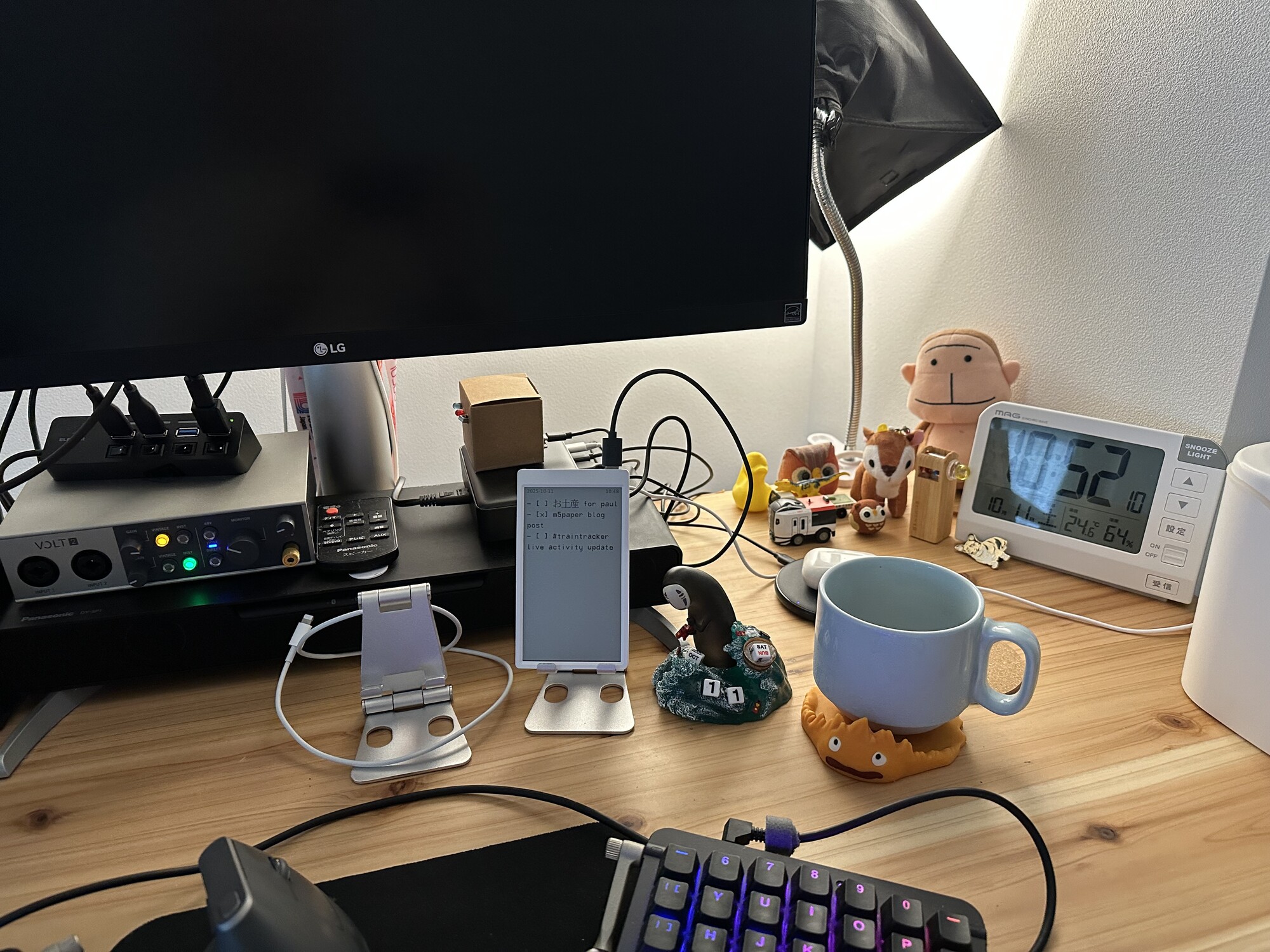
An E-Ink Desk Companion With M5Paper
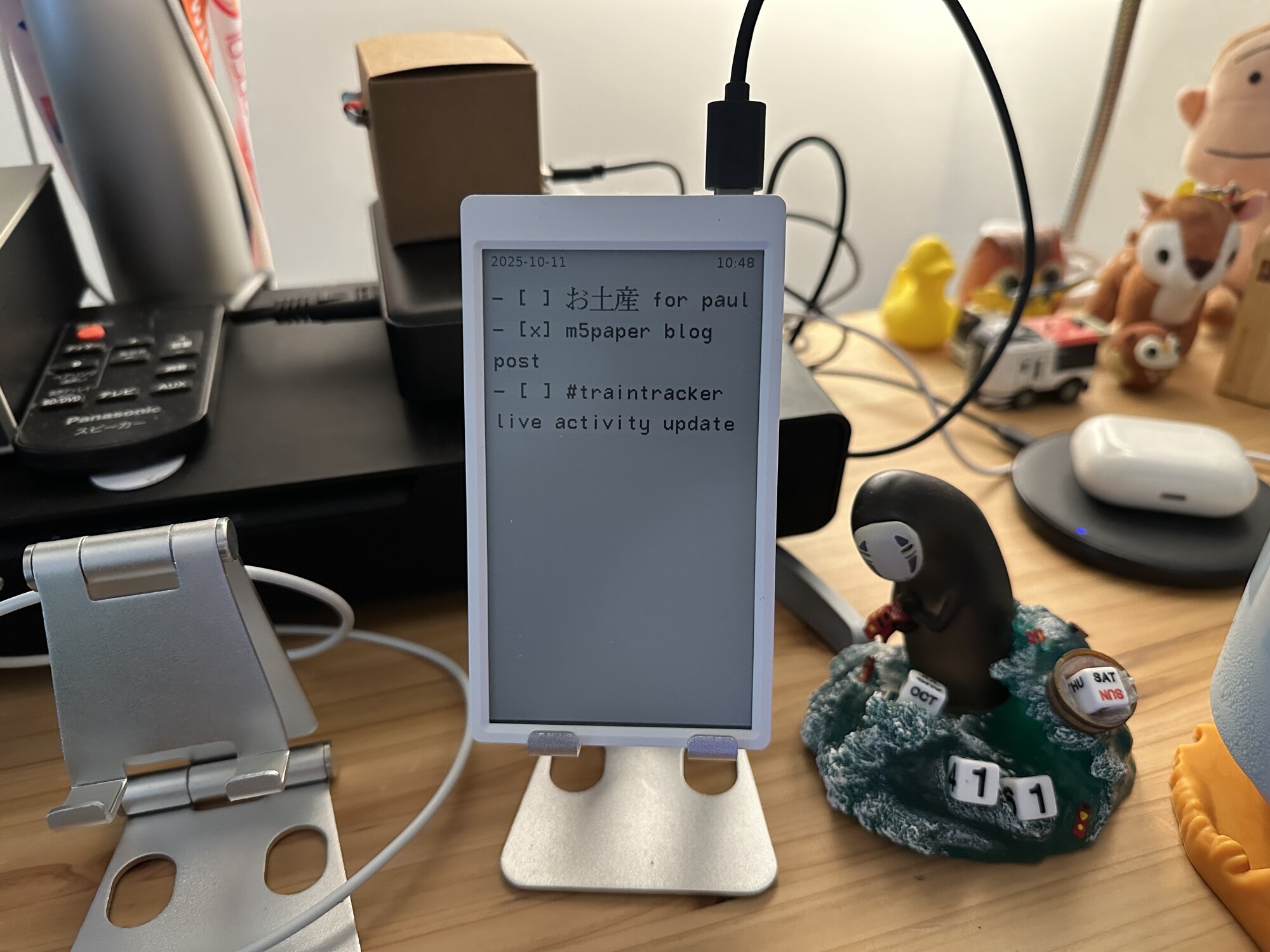
I’ve had an M5Paper since my days in the R&D Department at Cookpad that I’ve never known what to do with. My friend Dave has been doing a lot of microcontroller projects in his spare time, and it inspired me to get out the M5Paper again.

M5Paper is an all-in-one development kit device that wraps an ESP32 microcontroller, a rechargeable battery, some environment sensors, and sticks on a 4.7” capacitive-touch E-Ink display. I bought it for about ¥8000 a couple years ago, but the improved version S3 goes for $59 USD at the time of this writing.
My new idea was to have the M5Paper on my desk mirroring my current TODO list for the day.
Feasibility research
I keep a daily markdown file with my TODOs at the top and then notes about the day’s work below it. I’ve been doing this for the last 2 years. Previously I’d use one markdown file for an entire year and use it as a rolling TODO list and scratch pad (this actually worked surprisingly well).
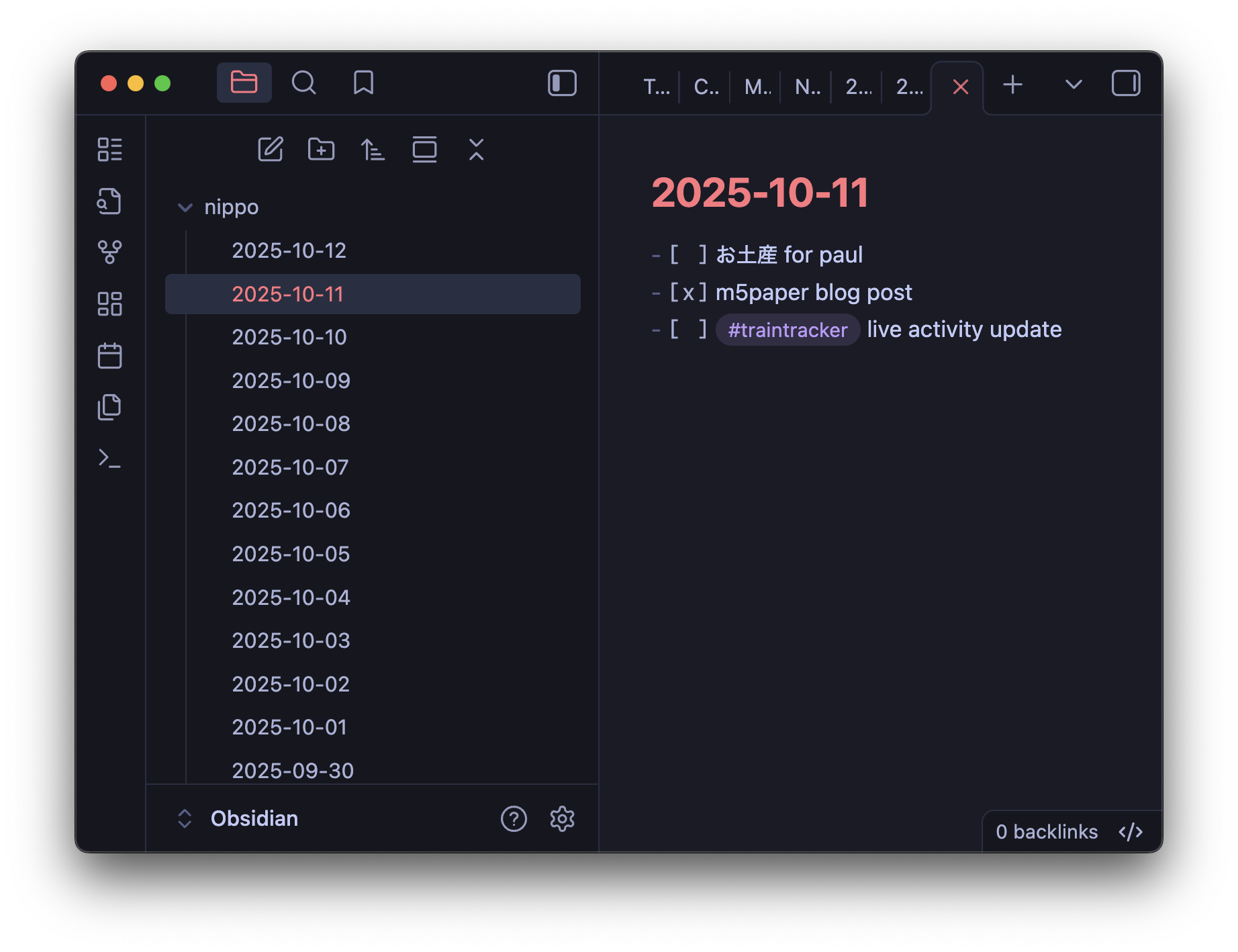
I’ve found that my daily TODO list often falls off my radar as soon as the Obsidian window gets buried behind all the others. I end up leaving TODOs unchecked or, even worse, completely forget to do a task. I realized the E-Ink display of the M5Paper was one way to keep my TODO list in my literal peripheral vision without requiring any additional TODO list management, including manual duplication or otherwise altering my current workflow.
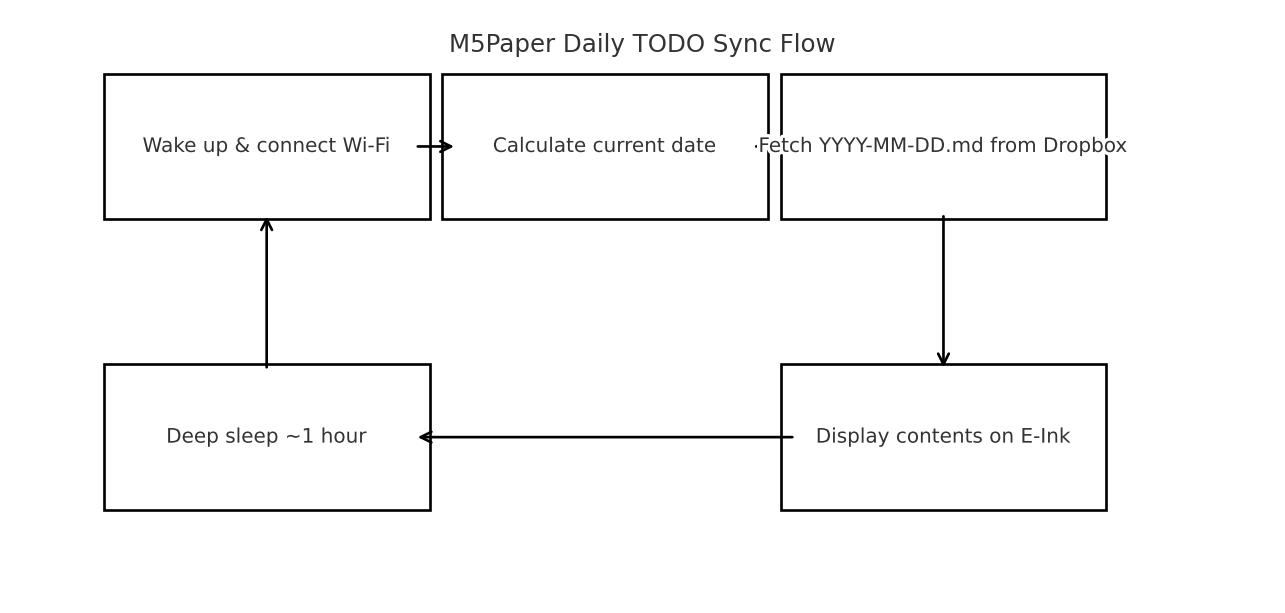
The Obsidian vault I use for my daily notes and project notes is sourced from a folder synced with Dropbox. Therefore, I realized I could have the M5Paper run the following:
- Wake up and connect to WiFi
- Calculate the current date
- Use the Dropbox API to fetch a file called 2025-10-10.md within a hardcoded folder path (i.e. the current date)
- Display the contents of the file on the E-Ink display
- Go to sleep for some amount of time (an hour?) to conserve battery
I had Claude Code and Codex help me along the prototyping journey.
First prototype
The first big decision was what environment to use for programming the ESP32. There’s the beginner-friendly UiFlow2 web IDE, the Arduino IDE, the PlatformIO plugin for VSCode, and then the more command line heavy route.
After flashing the firmware with UiFlow2 (this required downloading an out-of-date macOS app), I decided to use MicroPython with command line tools. I’ve used PlatformIO and Arduino IDE before but I wanted to see if MicroPython was more ergonomic than the embedded C++ variant.
The command line tools I ended up using were esptool and mpremote. Another reason I picked these was so my coding agents could be more helpful in being part of the development loop, although maybe the models have more training data for Arduino code?
The Dropbox part was a big unknown for me. I was banking on being able to fetch from my existing folder hierarchy with the Dropbox API. If it turned out to be impossible I probably would have given up since I’m not willing to change my entire personal knowledge-base setup.
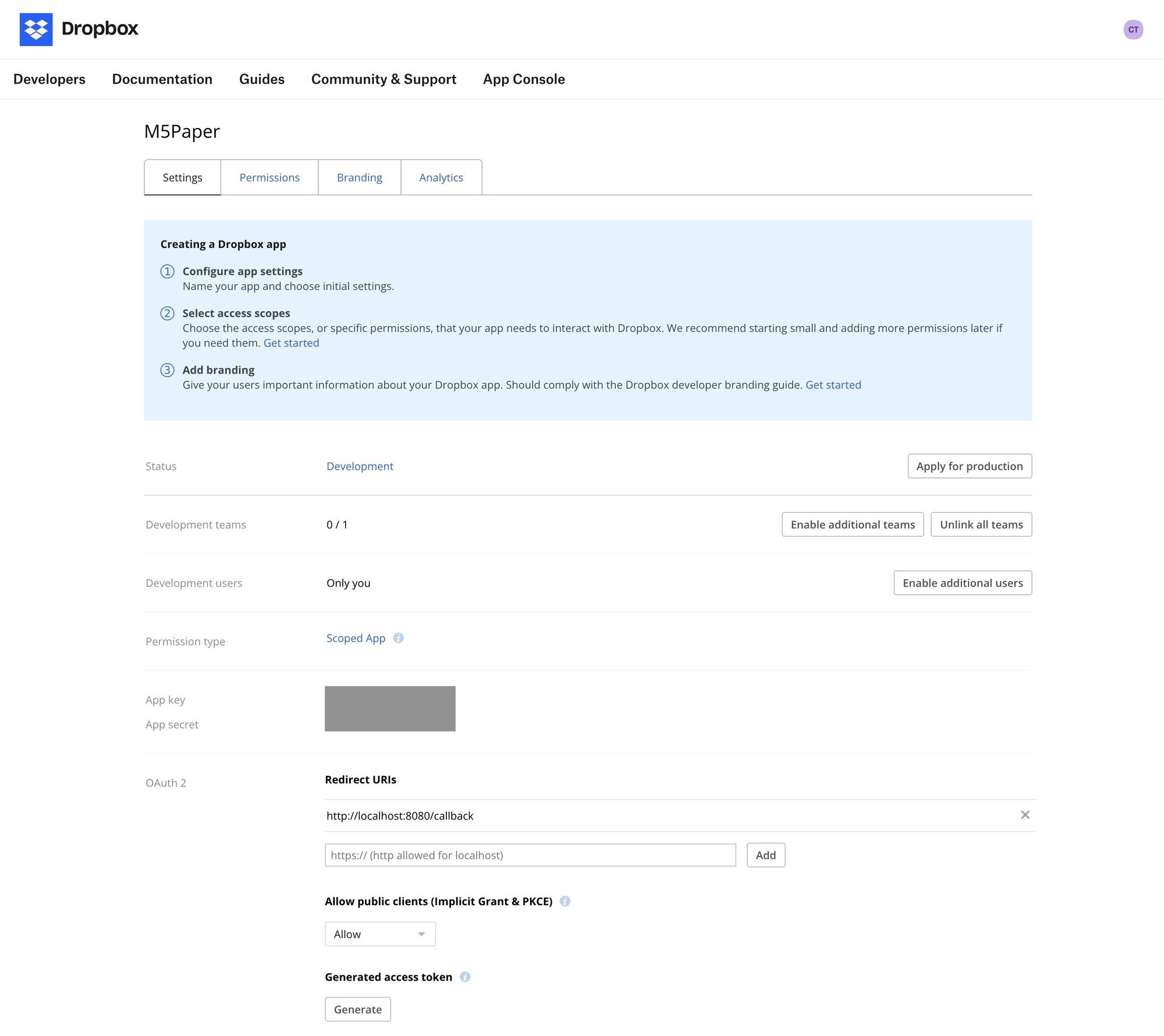
Luckily, it was really easy to create a Dropbox App that worked only for my account. I could even generate a hardcoded API token with the right permissions that lasted 4 hours for testing. With that in place, Claude Code generated the first attempt at the code needed to get something from Dropbox onto the screen.
The next step was understanding how deployment to device was supposed to work and then later automating it. This was especially error-prone because I was intentionally putting the device into deep sleep, which would cause it to become unresponsive to the base commands. In the end, I have a Makefile with a deploy command that looks like this:
DEVICE_PORT = /dev/cu.usbserial-0214257D
ESPTOOL = python3 -m esptool --chip esp32 --port $(DEVICE_PORT) read_mac
MPREMOTE = python3 -m mpremote connect $(DEVICE_PORT)

.PHONY: deploy test list clean help reset rtc-check rtc-sync rtc-init repl-mode

deploy: ## Deploy main.py, secrets.py, and bm8563_rtc.py to M5Paper (full deployment)
	@echo "🔄 Deploying to M5Paper..."
	@echo "⚡ Resetting device..."
	@$(ESPTOOL) > /dev/null 2>&1
	@echo "⏳ Waiting for boot..."
	@sleep 4
	@echo "📁 Copying files..."
	@$(MPREMOTE) cp main.py :main.py > /dev/null 2>&1 && echo "  ✓ main.py copied" || echo "  ⚠️ main.py failed"
	@if [ -f secrets.py ]; then $(MPREMOTE) cp secrets.py :secrets.py > /dev/null 2>&1 && echo "  ✓ secrets.py copied" || echo "  ⚠️ secrets.py failed"; fi
	@if [ -f bm8563_rtc.py ]; then $(MPREMOTE) cp bm8563_rtc.py :bm8563_rtc.py > /dev/null 2>&1 && echo "  ✓ bm8563_rtc.py copied" || echo "  ⚠️ bm8563_rtc.py failed"; fi
	@echo "🔄 Final reset..."
	@$(ESPTOOL) > /dev/null 2>&1
	@echo "✅ Deployment complete!"
This essentially just copies over the Python files from my Mac to the M5Paper, but with a few extra steps to make sure the device is ready to be written to. Hard-won knowledge, but after getting this in place, the development loop is about as fast as it can be.
Putting the device in deep sleep blocks the REPL from connecting normally. Therefore, I also have a Makefile command for temporarily replacing the deployed contents with a dummy file.
repl-mode: ## Replace main.py with a stub so the device boots straight to the REPL
	@echo "🛠  Entering REPL mode..."
	@echo "⚡ Resetting device..."
	@$(ESPTOOL) > /dev/null 2>&1
	@echo "⏳ Waiting for boot..."
	@sleep 4
	@echo "🗑  Installing REPL stub..."
	@$(MPREMOTE) cp repl_stub.py :main.py > /dev/null 2>&1 && echo "  ✓ stub copied" || echo "  ⚠️ stub copy failed"
	@echo "🔄 Final reset..."
	@$(ESPTOOL) > /dev/null 2>&1
	@echo "✅ Device will now stay idle for REPL access."
Going beyond the prototype
I had my first working prototype up and running after a few hours which was great. However, there were some lingering issues the next day:
- The dev-use-only Dropbox API token I had used expired after 4 hours. I needed to use the full OAuth flow to get a refreshable token.
- The real time clock (RTC) was often getting confused after wake-ups or power events and either returning to the unix epoch or defaulting to an incorrect hour during the correct day.
- Japanese characters showed up as rectangular boxes.
- I wanted a way to refresh the contents manually by pressing the side button.
Dropbox API token
The Dropbox API token issue turned out to be the easiest solve of the above problems. Claude Code wrote me a quick script I could run on my Mac that used my Dropbox app secret credentials to return a refreshable token. I added that token to the secrets.py file on the M5Paper and now I had a long-term solution.
Clock issues
As usual, anything with clocks or calendars is the hardest problem. 1. My lack of knowledge about the M5Paper itself combined with 2. the difficulty of isolating a test environment that allowed me to observe the device without interrupting it – prolonged the debugging experience.
Through a lot of agent churn, I finally learned that the M5Paper has two clocks: ESP’s on-chip RTC and a dedicated chip external RTC connected to the lithium battery. Setting the external RTC with a one-off script during dev time would save a lot of hassle and complexity in the main loop.
Japanese characters
I sometimes leave notes in Japanese. I noticed these characters appeared on the display as unrenderable unicode blocks like ▯▯▯. Leaving them this way was not a deal breaker, but through a quick exploration of the M5 API, I found there was already a pre-loaded Japanese font I could use that solved the problem. The only down side is that the granularity of font sizes with the Japanese font makes it so I have to choose between a-little-too-small and a-little-too-large (I chose large).
Contents refresh and power management
I was originally hoping I could use the M5Paper for long stretches on battery power. Unfortunately, I think its age has left the battery in a vestigial state. Plus, I have a new charging port available for it, which makes keeping it plugged in all the time no longer an issue.
I’ve therefore set the refresh logic going forward as:
- On battery power: refresh once an hour.
- On USB power: refresh once every 5 minutes.
- Also refresh on side button tap.
On redraws, the whole screen flickers black and white, then draws the text (quickly) line by line. This would be a little distracting to see in my field of view every 5 minutes, especially since the TODO list does not change that often (and I am the only one changing it). Therefore, I also added some diffing logic. Although the list is refreshed every 5 minutes, it will only redraw if the contents on screen have changed.
The M5Paper does have a capacitive touch screen, but in my preliminary investigations, the deep sleep interrupt does not work the same way as it does for the hardware button. Since I’ve recently changed the refresh logic to account for unlimited USB power, I could go further and keep the ESP32 awake, add scrolling, and add other capacitive touch buttons to the display. But for now I’m happy with the light feature set.
The final small task (mostly for ongoing debugging) was to add a battery level indicator to the bottom of the screen as a screen-width progress bar. I’m only using the battery level indicator to get a feel for how the internal battery handles daily usage going forward. This knowledge will inform future decisions about product direction (heavy air quotes on “product” since this is just for me).
Conclusion
If you’ve never done embedded systems development before, hopefully I’ve shown that building personal-use hardware is within reach for most software developers. There’s an infinite web of tangential devices and use cases out there (looking at you, Raspberry Pi 4 in a box in my closet). Hopefully this has given you, the reader, some ideas for fun weekend projects whose results you can enjoy every day.